 landing.fyi
Upload guide
MGL iEFIS flight data log — export & score every landing
Your MGL iEFIS already records every flight to the SD card in the front of the unit — pull the card and upload the recording straight off it at landing.fyi, decoded natively. Every landing scored 0–100.
Covers: iEFIS (Explorer / Challenger / Discovery), Enigma, Odyssey, Voyager
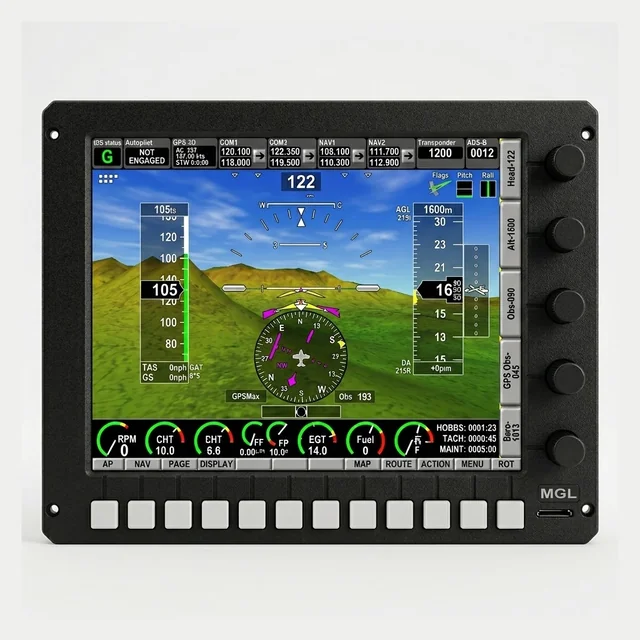
1) The black-box is already recording
An MGL iEFIS keeps a rolling black-box on the SD card in the front of the unit — the last hour or two of flying, written automatically. For a normal flight there’s nothing to arm and no menu to open: just fly, and the recording is waiting on the card when you shut down.
- Make sure an SD card is in the front slot before you fly — the recording goes to that card.
- Fly normally. The unit captures the whole flight on its own.
To keep more than the rolling window — a long cross-country, or a second parallel recording — you pre-create a recording file on the card from the unit’s own menus. For the day-to-day case you don’t need it — the black-box has the landing.
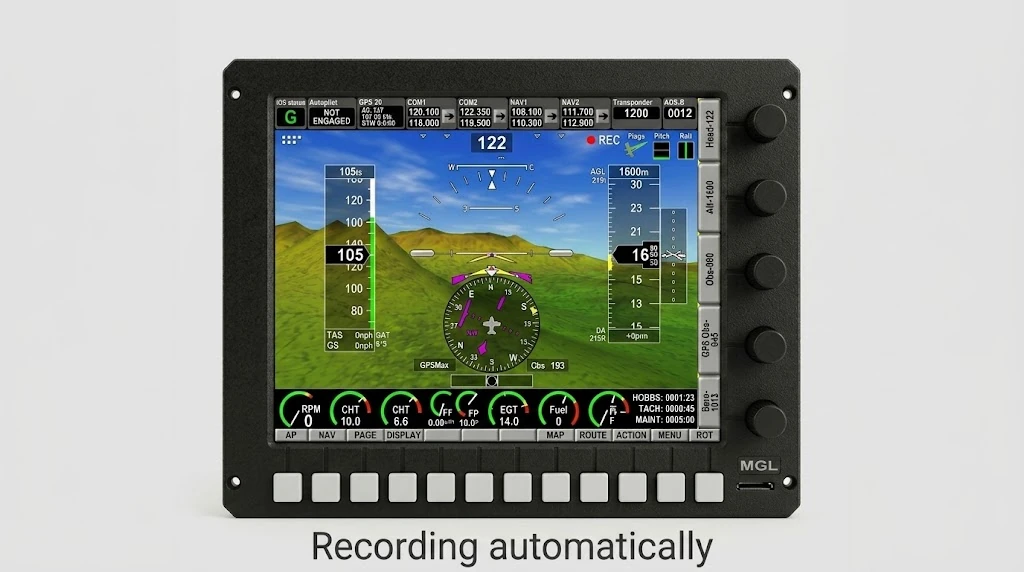
2) Pull the front SD card
After shutdown, eject the SD card from the slot at the bottom-right of the bezel. The whole flight is already on it as a binary recording — one of:
iEFIS.RECon newer “Explorer” units, orIEFISBB.DATon older Enigma black-box units. You may see one or the other; grab whichever is there.- That file is the recording — the unit doesn’t write a
.csv. Upload it as-is; landing.fyi reads the binary directly.
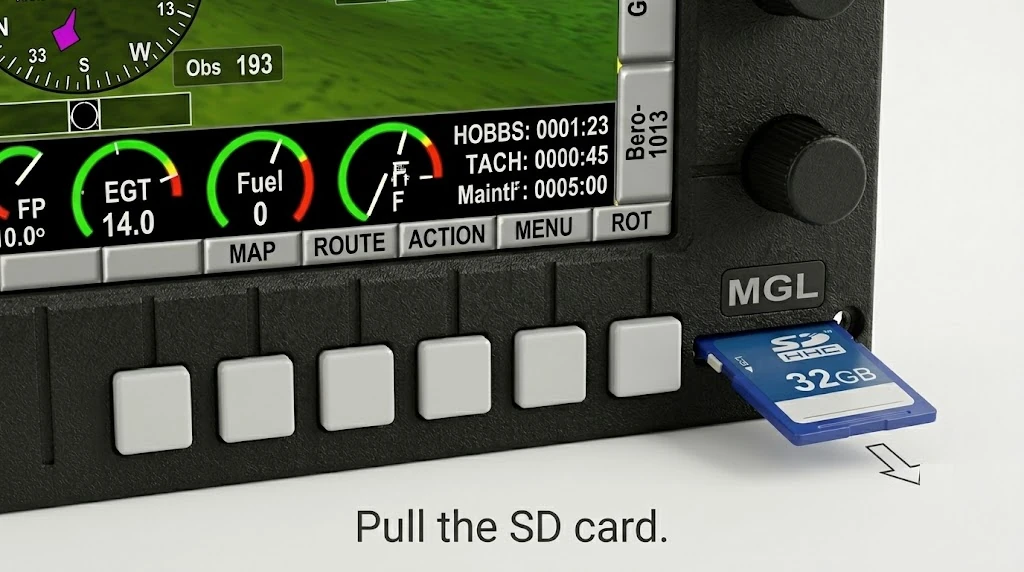
Lost the card? A 32 GB SD card is plenty — leave it in the front slot and it captures every flight. If a card won’t read, format it to FAT32.
3) Upload the recording
Read the card and grab the recording file off it —
iEFIS.REC or IEFISBB.DAT. Uploading it raw is the
cleanest path: landing.fyi decodes the binary directly, no converter, and the
numbers come straight off the unit.
.csv — that keeps the date — and upload the
.csv instead. Raw-file date support is coming; until then this is the
only difference between the two paths.
On a computer
Put the SD card in an SD or USB reader and open it.
Grab iEFIS.REC or IEFISBB.DAT recording from the SD card and upload it — landing.fyi scores every landing in it.
Want feedback on your own landings?
landing.fyi scores every landing 0–100 from your avionics log — approach, glidepath, centerline, flare, firmness. Find your greaser.
Get your landing score →Free. Your logs stay private — already have an account? Log in
As an Amazon Associate, landing.fyi earns from qualifying purchases.