 landing.fyi
Upload guide
Garmin TXi flight data log — export & score every landing
TXi logging is automatic — fly with a full-size SD card, confirm it under System > Logs, tap Export Data Log, then upload the log_*.csv files to landing.fyi — every landing scored 0–100.
Covers: G500 TXi, G600 TXi, G700 TXi (retrofit certified glass)
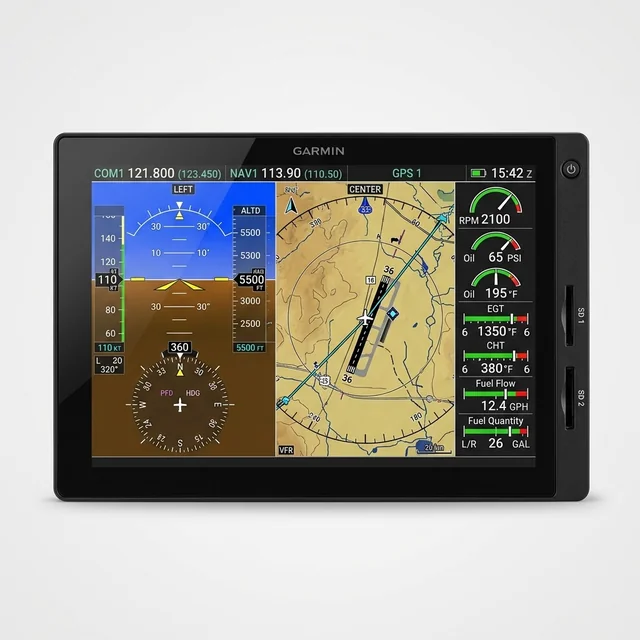
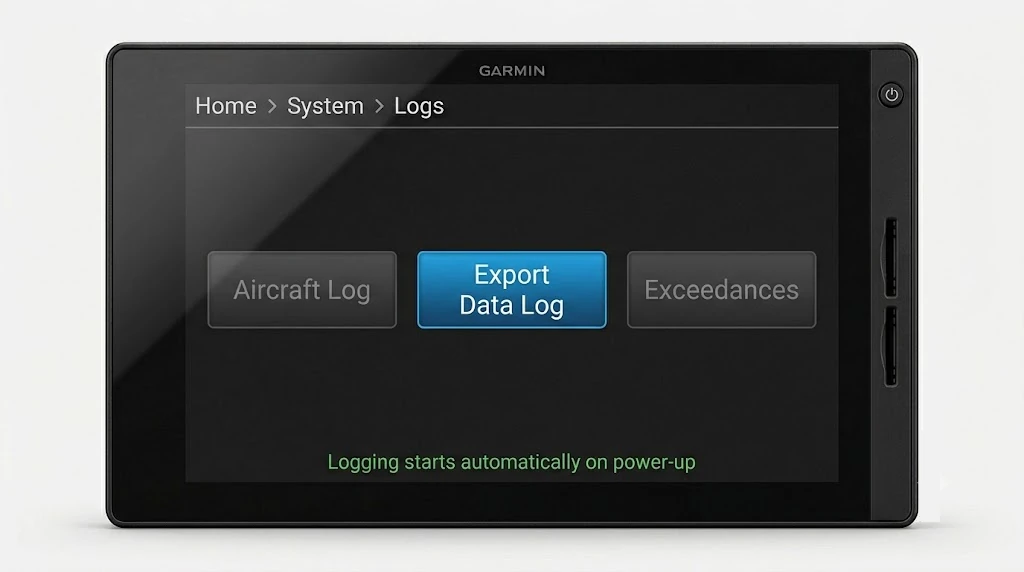
1) Logging is automatic — confirm it, then export
The TXi display (GDU 700L / 700P / 1060) starts logging at power-up — there’s nothing to switch on. It holds about 100 hours of flight data and overwrites the oldest once full, so export soon after you land. Getting the data out is a one-tap Export on the Logs page:
- Open the Logs page. On an MFD-configured display: from Home, tap System → Logs. On a PFD-configured display: tap the Menu key → System → Logs.
- Tap Export Data Log. The key greys out and shows a percentage while it writes to the card.
- Wait until the key is active again before you eject — pulling the card mid-export corrupts the file.
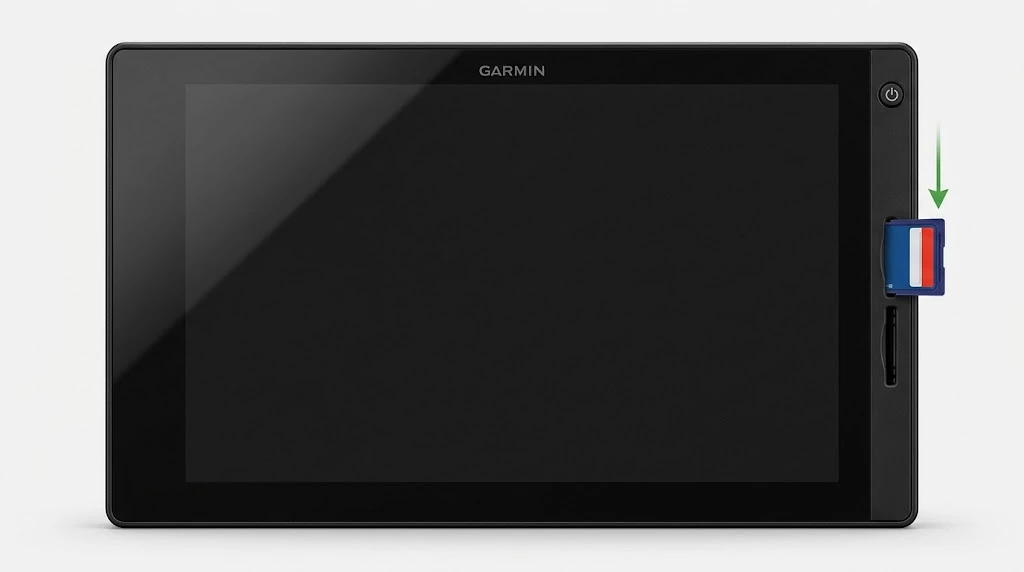
2) Insert your SD card and fly
- Power the unit off first — never insert or remove a card in flight.
- Use a full-size SD card (not microSD, not USB), 8 GB to 32 GB, formatted FAT32. If it won’t read, format it to FAT32.
- Slide the card into the top slot (GDU 700P / 1060) or left slot (GDU 700L) — label toward the left edge of the screen on the 700P / 1060, or toward the top edge on the 700L — until the back edge sits flush with the bezel. Power on.
- Fly — the log writes to the card automatically.
Need a card? A 32 GB SD card is in spec — anything 8 GB to 32 GB works. (Forgot the card? The flight stays in internal memory — insert a card after landing and export it.)
3) Offload and upload
- Export, then power off and eject the card (press the exposed edge to release it).
- Open the
data_logfolder — each power-cycle is its own file, namedlog_YYMMDD_HHMMSS_WPT.csv. - Grab every
log_*.csv— one flight can span several files.
On a computer
Put the SD card in an SD or USB reader and open it.
Grab every log_*.csv file from the SD card and upload them all at once — landing.fyi scores each flight and quietly ignores any duplicates, so it's safe to select the lot.
Want feedback on your own landings?
landing.fyi scores every landing 0–100 from your avionics log — approach, glidepath, centerline, flare, firmness. Find your greaser.
Get your landing score →Free. Your logs stay private — already have an account? Log in
As an Amazon Associate, landing.fyi earns from qualifying purchases.