 landing.fyi
Upload guide
Garmin G2000 / G5000 flight data log — export & score every landing
Your G2000/G5000 records every second to the MFD’s SD card automatically — no setup. Pull the log_*.csv files and upload them; landing.fyi scores every landing 0–100.
Covers: G2000 (e.g. TTx, M2), G5000 (e.g. Citation, King Air, Vision Jet variants)
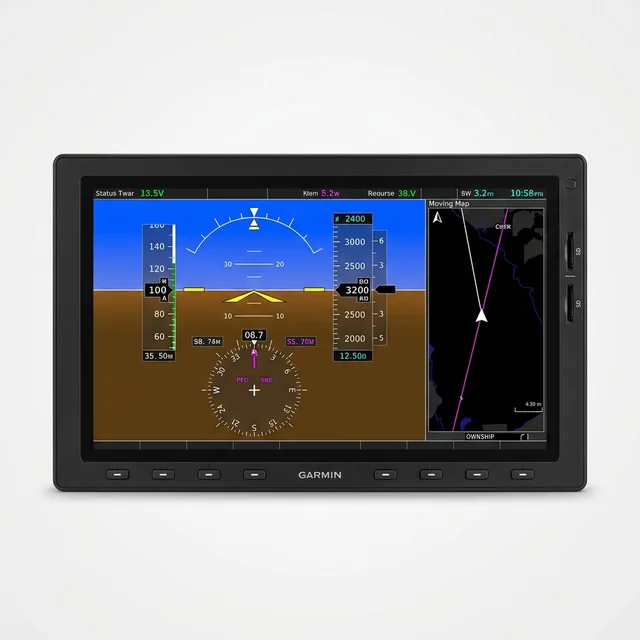
1) Logging is automatic — no toggle
There’s nothing to switch on. With an SD card in the MFD top slot, the deck writes a new .csv once per second every time the avionics are powered. There’s no logging switch and no on-screen logging menu to hunt for on the GTC — so the proof is the file, not a screen:
- Put your SD card in the MFD top slot before power-up (Step 2).
- Power up and fly normally — the deck logs on its own.
- After shutdown, pull the card and check it: a
data_logfolder holding a newlog_*.csvdated today is the real proof logging ran (Step 3).
The logging card reads in the top slot; resident nav databases live in the bottom slot, not on the logging card. The GTC touchscreen you tap has no card slot of its own — the card always goes into the MFD bezel.
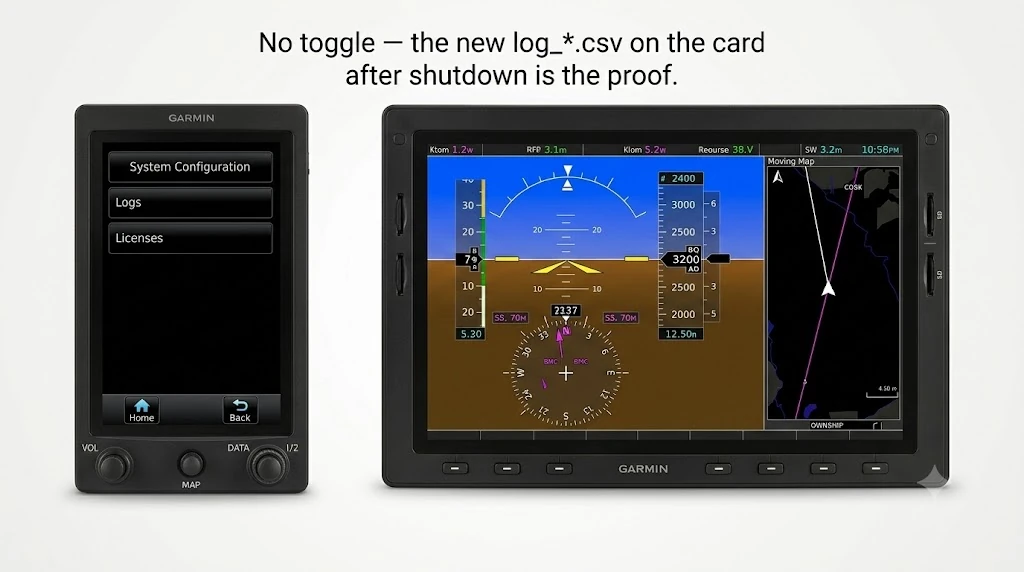
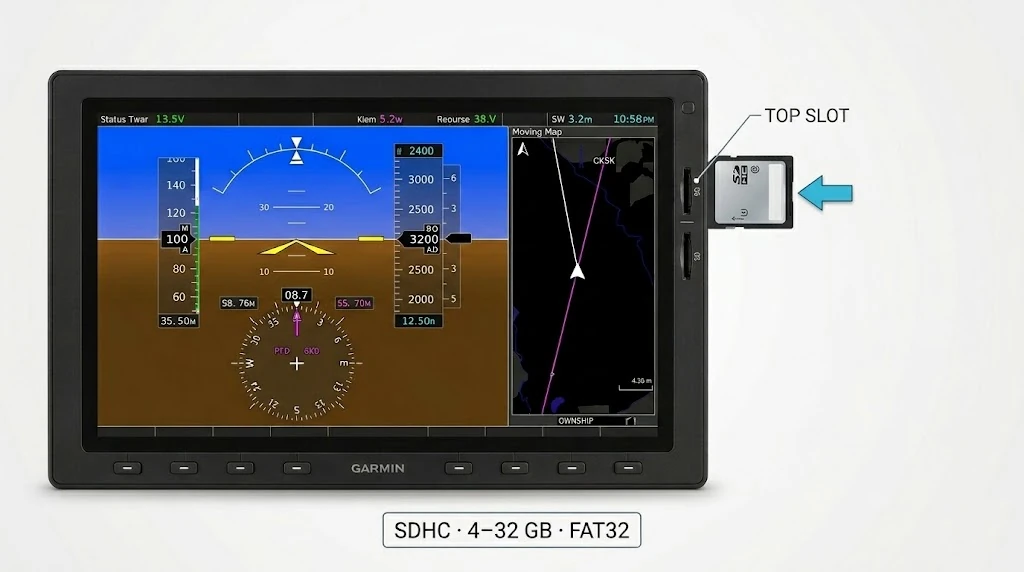
2) Insert your SD card and fly
- Use the right card: a full-size SDHC card, 4–32 GB, formatted FAT32. Cards this size ship FAT32 — if yours doesn’t read, format it to FAT32.
- Insert it in the MFD top slot — a standard SDHC card works there for logging. (Only the lower nav slot needs a Garmin TSO card; don’t put your logging card there.)
- Insert it before power-up, then fly normally — the deck writes the log on its own.
Need a card? A 32 GB SDHC card fits the spec — anything 32 GB or smaller works.
3) Offload and upload
- Pull the card from the MFD top slot.
- Read it (below) and open the
data_logfolder. Logs are namedlog_YYMMDD_HHMMSS_IDENT.csv— there’s one per power-on, so a multi-leg day has several. Grab them all.
On a computer
Put the SD card in an SD or USB reader and open it.
Grab every log_*.csv file from the SD card and upload them all at once — landing.fyi scores each flight and quietly ignores any duplicates, so it's safe to select the lot.
Want feedback on your own landings?
landing.fyi scores every landing 0–100 from your avionics log — approach, glidepath, centerline, flare, firmness. Find your greaser.
Get your landing score →Free. Your logs stay private — already have an account? Log in
As an Amazon Associate, landing.fyi earns from qualifying purchases.