 landing.fyi
Upload guide
Garmin G3X Touch flight data log — export & score every landing
Turn on logging once, fly with an SD card in the slot, then upload the .csv to landing.fyi — every touchdown scored 0–100.
Covers: G3X Touch (experimental/LSA; GDU 4xx/3xx)
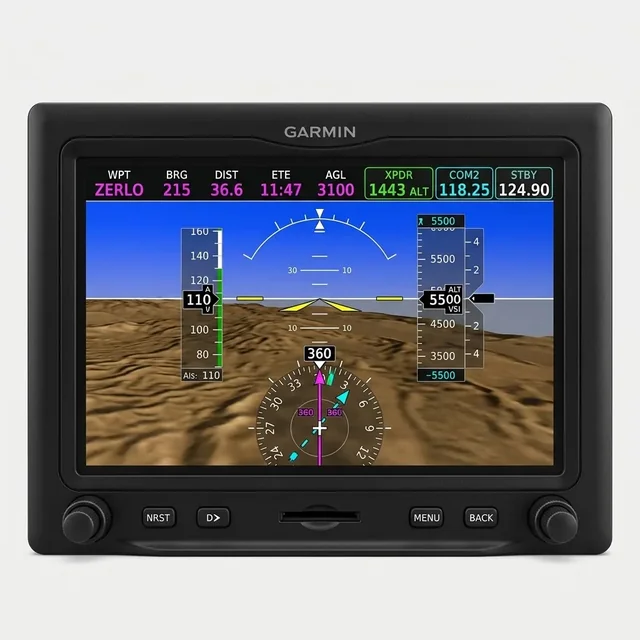
1) Enable data logging
G3X Touch logging is off from the factory — turn it on once in Configuration Mode, a one-time button-hold. Already have a data_log folder on your card? Logging is on; skip to Step 2.
Enter Configuration Mode: with the display off, hold the MENU button on the bezel and apply power (master / avionics on). Keep holding until Configuration Mode appears, then release.
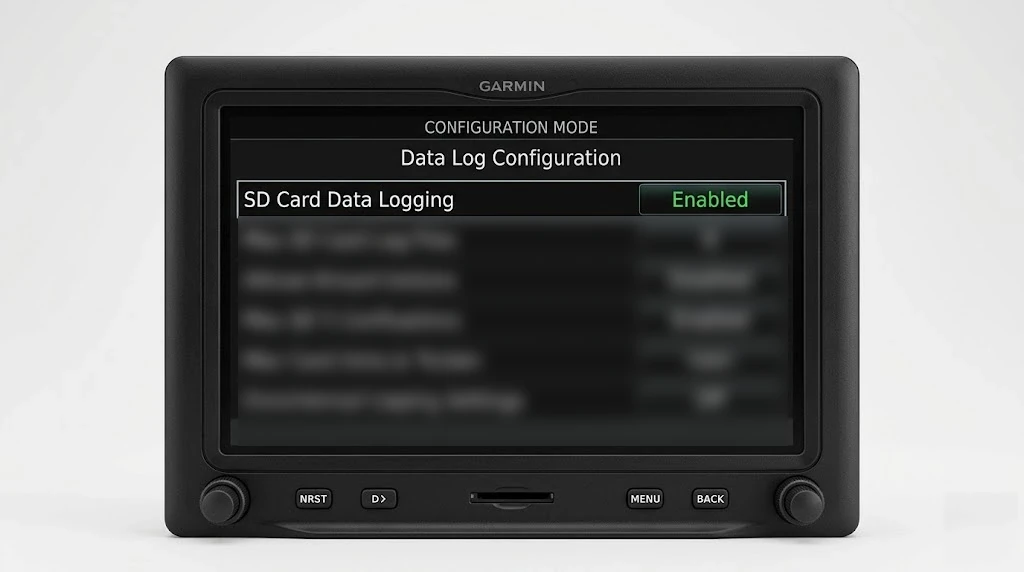
Then navigate — touch the screen or turn the Move Selector knob to move and select:
- Open the Data Log Configuration page.
- Set SD Card Data Logging to Enabled.
- (Optional) on Max SD Card Log Files, press Clear to show
- - - -— unlimited logs, so old flights aren't overwritten. - Exit, power off, then back on. It now writes one
.csvper flight todata_logwhenever a card is in the slot.
On a certified install, Configuration Mode may be locked behind the installation approval — if the screen won't enter it, have your installer set SD Card Data Logging to Enabled. Experimental / LSA owners have full access.
2) Insert your SD card and fly
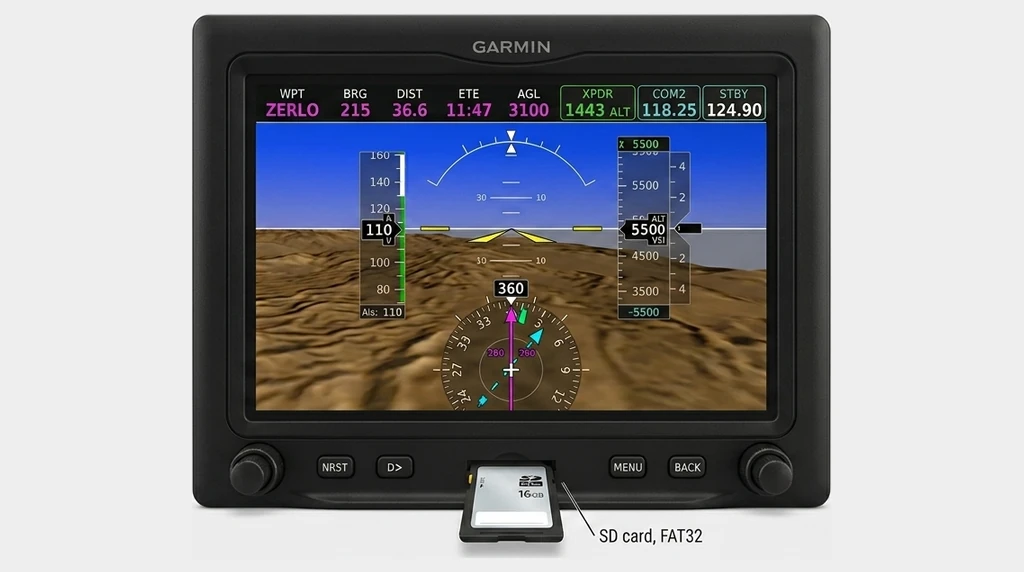
- Find the slot — the SD card slot in the bottom-center of the display bezel.
- Insert a full-size SD card label-up until it clicks. Leave it in permanently.
- Fly normally. Logging runs the whole flight on its own.
Card spec
Any modern card works. A standard SD card formatted FAT32 is the safe choice — 2 GB holds over 1,000 hours (up to ~1,000 log files). If a card doesn't read, format it to FAT32 (2 minutes).
Need one? A full-size 32 GB SD card works — anything 32 GB or smaller is plenty. (Grab a reader in Step 3 to offload on a phone.)
3) Offload and upload
- Power off, then push the card in to eject it and pull it out.
- Read it (below) and open the
data_logfolder — one.csvper flight.
On a computer
Put the SD card in an SD or USB reader and open it.
Grab every log_*.csv file from the SD card and upload them all at once — landing.fyi scores each flight and quietly ignores any duplicates, so it's safe to select the lot.
Each flight is its own file, named log_YYYYMMDD_HHMMSS_<dest>.csv — date, time, destination (e.g. log_20260202_065031_KLMO.csv).
Want feedback on your own landings?
landing.fyi scores every landing 0–100 from your avionics log — approach, glidepath, centerline, flare, firmness. Find your greaser.
Get your landing score →Free. Your logs stay private — already have an account? Log in
As an Amazon Associate, landing.fyi earns from qualifying purchases.